How to Allocate More RAM to Minecraft? Improve Performance and Reduce Lag
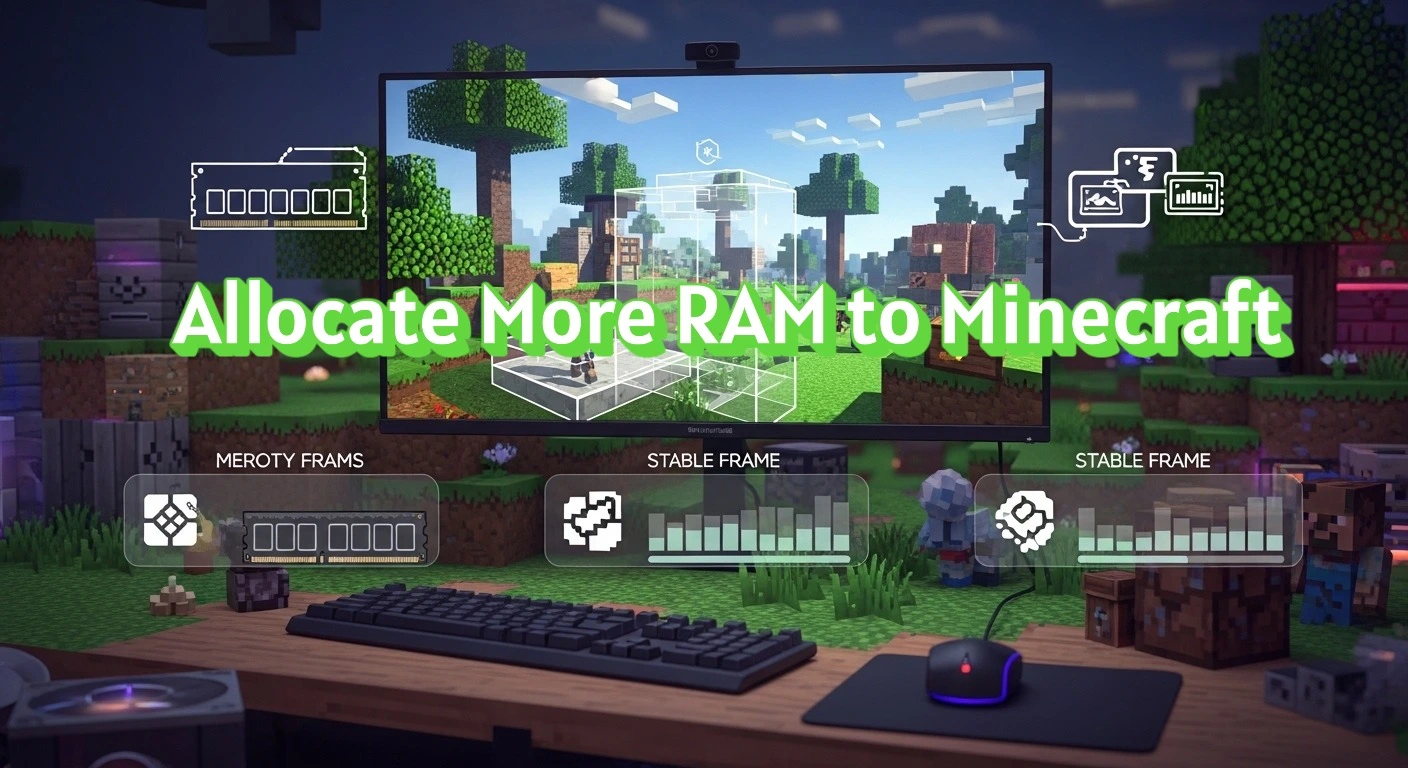
Allocating more RAM to Minecraft means increasing the amount of system memory the game can use through launcher settings. This helps reduce lag and improve stability, especially for modded gameplay and large worlds.
📘 What Does Allocating More RAM to Minecraft Mean?
Allocating more RAM to Minecraft means increasing the amount of system memory the game is allowed to use while running. RAM stores active game data such as loaded chunks, textures, entities, and background processes.
When Minecraft has enough allocated RAM, it can load worlds more smoothly and reduce memory-related slowdowns. This setting does not add new hardware. It only changes how existing system memory is assigned to the game during gameplay.
❓ Why Does Minecraft Need More RAM?
Minecraft relies on RAM to load and manage world data in real time. When available memory is limited, the game may struggle to handle active chunks, entities, and background processes.
Allocating more RAM helps reduce lag, stuttering, and long loading times. This is especially noticeable in large worlds, high render distances, and gameplay with mods or resource packs.
More RAM allows Minecraft to store additional data in memory instead of repeatedly loading it from storage. This improves stability and supports smoother performance during extended play sessions.
🧩 How Much RAM Does Minecraft Need?
The amount of RAM Minecraft needs depends on how the game is played. Vanilla gameplay, mods, and shaders each require different memory levels.
RAM for Vanilla Minecraft
Vanilla Minecraft runs smoothly with 2 GB of RAM. This covers standard worlds, default settings, and normal render distances.
RAM for Modded Minecraft
Modded Minecraft requires more memory due to added content and background processes. Most modpacks perform well with 4–6 GB of RAM, depending on size and complexity.
RAM for Shaders and High Settings
Shaders, high render distances, and large texture packs increase memory usage. These setups often need 6–8 GB of RAM to maintain stability and consistent performance.
RAM Limits to Follow
Allocating more RAM than needed does not improve performance. Minecraft should never use all system memory, as this can slow down the operating system and cause instability.
Choosing the right RAM amount ensures balanced performance without unnecessary resource strain.
💻 How to Check Available RAM on Your Computer?
Before allocating more RAM to Minecraft, it is important to know how much system memory is available. This helps avoid assigning more RAM than the system can handle.
Checking RAM on Windows
On Windows, system RAM can be viewed through system settings or task management tools. These show total installed memory and current usage.
Checking RAM on macOS
On macOS, memory information is available in system information settings. This section displays total RAM and how it is being used.
Why Available RAM Matters?
Allocating RAM beyond what the system can safely provide can cause slowdowns or crashes. Checking available memory ensures stable performance while running Minecraft.
⚙️ How to Allocate More RAM to Minecraft Java Edition?
Allocating more RAM to Minecraft Java Edition is done through the official launcher settings. This process adjusts how much memory the game can use while running.
Open the Minecraft Launcher and select the Installations tab. Edit the installation you use to play Minecraft and open the advanced settings.
Locate the memory or JVM section where RAM allocation is displayed. Increase the RAM value based on your system capacity and gameplay needs, then save the changes.
After updating the settings, restart Minecraft to apply the new RAM allocation. The game will now run using the updated memory limit.
🖥️ How to Allocate More RAM Using the Minecraft Launcher?
The Minecraft Launcher provides a direct way to adjust RAM allocation through its settings, which many players manage alongside their general Minecraft setup on platforms such as https://mediumaquamarine-hyena-295716.hostingersite.com/. This method applies to standard Java Edition installations.
Open the launcher and go to the Installations section. Edit the active installation and enable advanced options if they are hidden.
Find the memory or JVM arguments field where the RAM value is defined. Increase the allocated RAM by adjusting the number to match your system’s available memory and gameplay needs.
Save the changes and restart the game. The new RAM allocation takes effect only after Minecraft relaunches.
📦 How to Allocate More RAM to Modded Minecraft?
Modded Minecraft uses more memory than vanilla gameplay because mods add extra features, assets, and background processes. Allocating additional RAM helps prevent crashes and slow loading.
Most modded setups perform better with 4 to 6 GB of RAM, depending on the number and size of installed mods. Larger modpacks may require more memory to load worlds and run smoothly.
RAM allocation for modded Minecraft is adjusted through the launcher or mod loader profile used to start the game. The process is similar to standard Java Edition but applies specifically to the modded installation.
Allocating the correct amount of RAM improves stability without overloading system resources.
🎮 How to Allocate More RAM Using Third Party Launchers?
Some players use third-party launchers to manage Minecraft installations and modpacks. These launchers include built-in options to adjust RAM allocation.
Most third-party launchers provide a memory slider or input field within profile or instance settings. This setting controls how much RAM Minecraft can use when launched through that profile.
The recommended RAM range depends on gameplay type. Vanilla setups usually need less memory, while modpacks and custom profiles require more.
After adjusting the RAM value, the launcher must be restarted or the profile reloaded for changes to apply.
🖧 How to Allocate More RAM to a Minecraft Server?
Allocating more RAM to a Minecraft server improves stability and performance, especially with multiple players or mods. Server RAM is separate from client-side RAM and must be configured independently.
Server RAM is assigned through startup settings or launch arguments used to run the server. Increasing the memory limit allows the server to load chunks, handle player activity, and process entities more efficiently.
The recommended RAM amount depends on player count, world size, and installed plugins or mods. Small servers require less memory, while larger or modded servers need more.
Allocating only the required amount of RAM helps maintain server responsiveness without overloading system resources.
⚠️ How Much RAM Should You Not Allocate to Minecraft?
Allocating too much RAM to Minecraft can reduce performance instead of improving it. Minecraft runs best when it has enough memory to load data without consuming all system resources.
Minecraft should not be allocated more than half of your total system RAM. Leaving sufficient memory for the operating system and background processes prevents slowdowns and instability.
Excessive RAM allocation can cause longer garbage collection cycles. This may lead to stuttering, frame drops, or delayed input during gameplay.
Choosing a balanced RAM amount ensures stable performance while keeping the system responsive.
🛑 Common Problems After Allocating More RAM
Allocating more RAM can sometimes introduce new issues if settings are incorrect. These problems are usually related to configuration, system limits, or incompatible setups.
One common issue is game crashes on startup. This can happen when too much RAM is allocated or when the value exceeds available system memory.
Another problem is reduced performance despite higher RAM. Over-allocation can increase garbage collection delays, causing stutters instead of smoother gameplay.
Players may also experience settings not applying. This occurs when changes are not saved correctly or the wrong installation profile is edited.
Identifying these issues early helps restore stability and prevents unnecessary performance loss.
🛠️ How to Fix RAM Allocation Not Working in Minecraft?
When RAM allocation changes do not take effect, the issue is usually related to settings, permissions, or profile selection.
Check the Correct Installation Profile
RAM changes apply only to the edited profile. Ensure the active installation is the one you modified before launching the game.
Verify Saved Settings
If changes are not saved, the launcher may reset values. Confirm the RAM value remains updated after closing and reopening the launcher.
Confirm System RAM Availability
Minecraft cannot use RAM that the system does not have. Make sure the allocated amount is lower than total installed memory.
Restart the Launcher
RAM allocation updates apply only after a full launcher restart. Closing and reopening the game alone may not be enough.
Avoid Conflicting Launchers
Multiple launchers can override settings. Use one launcher at a time to prevent configuration conflicts.
Fixing these issues ensures Minecraft uses the intended RAM allocation during gameplay.
🧪 Does Allocating More RAM Always Improve Performance?
Allocating more RAM does not always improve Minecraft performance. RAM helps only when the game is limited by memory shortages.
When Minecraft already has enough RAM, adding more does not increase frame rate or loading speed. Performance in these cases depends more on the CPU, GPU, and storage speed.
Extra RAM is most effective for large worlds, high render distances, and modded gameplay. For vanilla play with default settings, additional RAM beyond the recommended amount provides little benefit.
Balanced hardware usage ensures stable performance without unnecessary resource allocation.
📌 Key Facts About Minecraft RAM Allocation
Allocating more RAM to Minecraft adjusts how much system memory the game can use during gameplay. It does not add new hardware or increase total system RAM.
Minecraft Java Edition allows manual RAM allocation through launcher settings. The recommended amount depends on gameplay type, such as vanilla, modded, or shader use.
Allocating too little RAM can cause lag and crashes, while allocating too much can reduce performance. A balanced RAM setting improves stability without affecting the operating system.
RAM allocation changes apply only to the selected installation profile and take effect after restarting the launcher.
🧾 Conclusion
Allocating more RAM to Minecraft helps improve stability and performance when the game is limited by memory. The correct RAM amount depends on gameplay type, system capacity, and whether mods or shaders are used.
Using balanced RAM settings ensures smoother gameplay without overloading system resources. Proper allocation, combined with correct launcher settings, allows Minecraft to run efficiently and reliably.
❓ FAQs About Minecraft RAM Allocation
Players often have practical questions about RAM allocation in Minecraft. The answers below address the most common concerns clearly and accurately.
1. How Much RAM Should I Allocate to Minecraft?
Most vanilla gameplay runs well with 2 GB of RAM. Modded gameplay usually requires 4–6 GB, depending on the number of mods and world size.
2. Can Allocating Too Much RAM Hurt Minecraft Performance?
Yes. Allocating too much RAM can cause longer garbage collection cycles, which may lead to stuttering and reduced performance.
3. Does Allocating More RAM Increase FPS?
More RAM improves performance only when Minecraft is memory-limited. FPS mainly depends on CPU and GPU performance once enough RAM is allocated.
4. Why Are My RAM Changes Not Applying?
This usually happens when the wrong installation profile is edited or the launcher is not restarted after saving changes.
5. Is RAM Allocation Different for Servers and Single Player?
Yes. Server RAM is configured separately from client RAM and depends on player count, world size, and installed plugins or mods.