How to Play With Friends on Minecraft Java Edition? (2026 Multiplayer Guide)
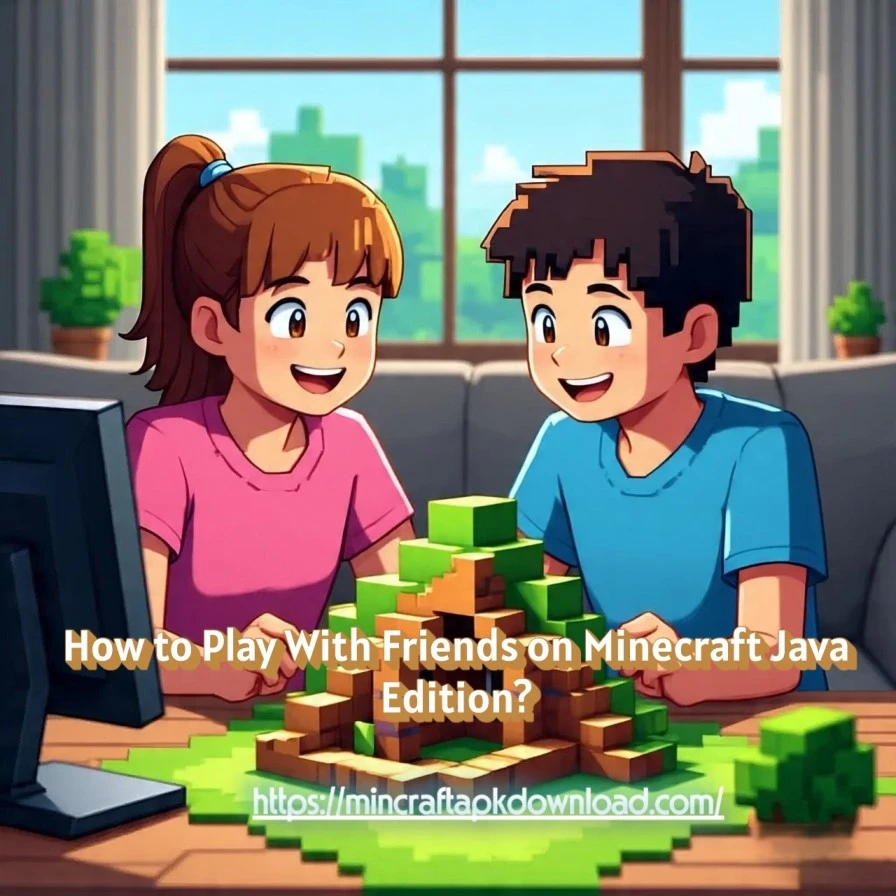
Playing Minecraft Java Edition with friends is one of the best ways to enjoy the game. The version includes several official multiplayer options that allow players to connect, build, and explore together.
The three main methods are Local Area Network (LAN) play, Minecraft Realms, and dedicated or public servers. Each method has different requirements, such as being on the same network, using a subscription service, or setting up a server with an IP address.
This guide explains every method step by step, so players can choose the best option depending on their setup, group size, and technical knowledge. By following the instructions, connecting with friends in Minecraft Java becomes simple and secure.
Method 1: Play Minecraft Java on a Local Area Network (LAN)
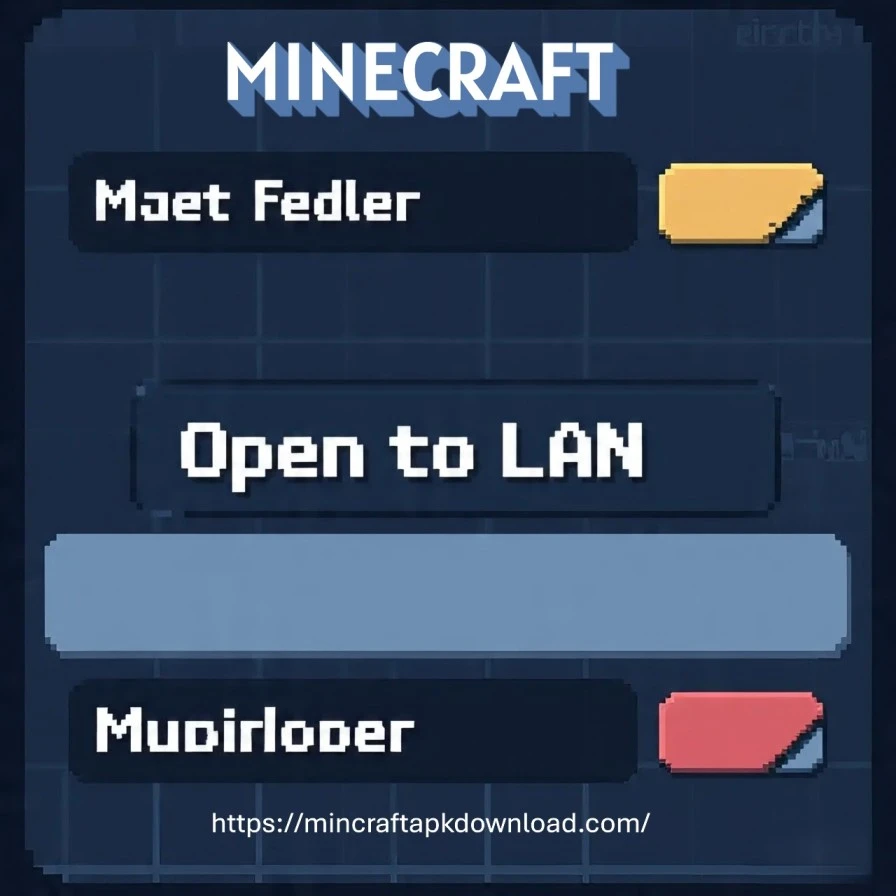
What Is LAN Play in Minecraft Java Edition?
A Local Area Network (LAN) allows players on the same internet connection to join a single Minecraft world. When one player hosts a LAN world, others connected to the same Wi-Fi or Ethernet network can enter the game without setting up a server.
Steps to Start a LAN World
- Open Minecraft Java Edition and create a new single-player world or load an existing one.
- Press Esc and click “Open to LAN.”
- Select the game mode (Survival, Creative, or Adventure).
- Adjust optional settings like cheats.
- Click “Start LAN World.”
- Other players select Multiplayer from the main menu, where the LAN world appears automatically.
Limitations of LAN Play
LAN play only works when players are connected to the same local network. For example, friends in the same home, school, or gaming café can join easily. If players live in different locations, other multiplayer options like Minecraft Realms or private servers are required.
Method 2: Play Minecraft Java With Friends Using Realms
What Are Minecraft Realms?
Minecraft Realms are official subscription-based servers hosted by Mojang and Microsoft. They allow players to enjoy a private, always-online multiplayer world without the need to configure hardware or network settings. Realms are designed for simplicity and security, making them the most beginner-friendly option.
How to Set Up a Realm in Minecraft Java Edition?
- Launch Minecraft Java Edition and select Minecraft Realms from the main menu.
- Start a subscription plan. A free trial may be available for new users.
- Create a new Realm or choose an existing one.
- Invite friends by entering their Microsoft or Xbox account usernames.
- Once invited, friends can join the Realm anytime through the Multiplayer menu.
Key Features of Minecraft Realms
- Supports up to 10 players in a single Realm.
- Always online, so friends can access the world even if the host is offline.
- Offers regular content updates and exclusive mini adventures created by Mojang.
- Provides a secure environment with minimal risk compared to public servers.
When to Choose Realms?
Realms are best for groups of friends who want an easy-to-manage world with reliable uptime. While there is a subscription fee, the convenience and official support make it a preferred choice for players who do not want to deal with server setup or port forwarding.
Method 3: Play Minecraft Java With Friends on Private or Public Servers
What Are Minecraft Servers?
A Minecraft server is a multiplayer environment where multiple players can connect and interact. Servers can be private, hosted by an individual for a small group of friends, or public, operated by large communities with thousands of active players.
How to Set Up a Private Server in Minecraft Java Edition?
- Install the latest version of Java on your computer.
- Download the Minecraft Java server software from the official Minecraft site.
- Create a new server folder and place the server file inside it.
- Run the server file to generate the required configuration files.
- Configure port forwarding on your router (default port: 25565).
- Share your public IP address and port number with trusted friends.
- Friends connect by opening Multiplayer, selecting Add Server, and entering the details.
Benefits and Limitations of Private Servers
- Benefits: Full control over game rules, mods, and plugins.
- Limitations: Requires a stable internet connection, proper configuration, and ongoing maintenance.
Joining Public Minecraft Servers
Public servers allow players to join large communities and play popular modes such as Skyblock, BedWars, Hunger Games, and Creative plots. Friends can log in together and enjoy cooperative or competitive gameplay.
Examples of Popular Public Servers
- Hypixel – minigames and PvP modes.
- CubeCraft – creative modes and challenges.
- Wynncraft – role-playing adventure with quests.
When to Choose a Server?
Private servers are ideal for players who want customization and control, while public servers are best for groups seeking variety and large-scale multiplayer experiences. Both require stable connections, but private servers demand more technical knowledge.
Method 4: Join Multiplayer Servers Together
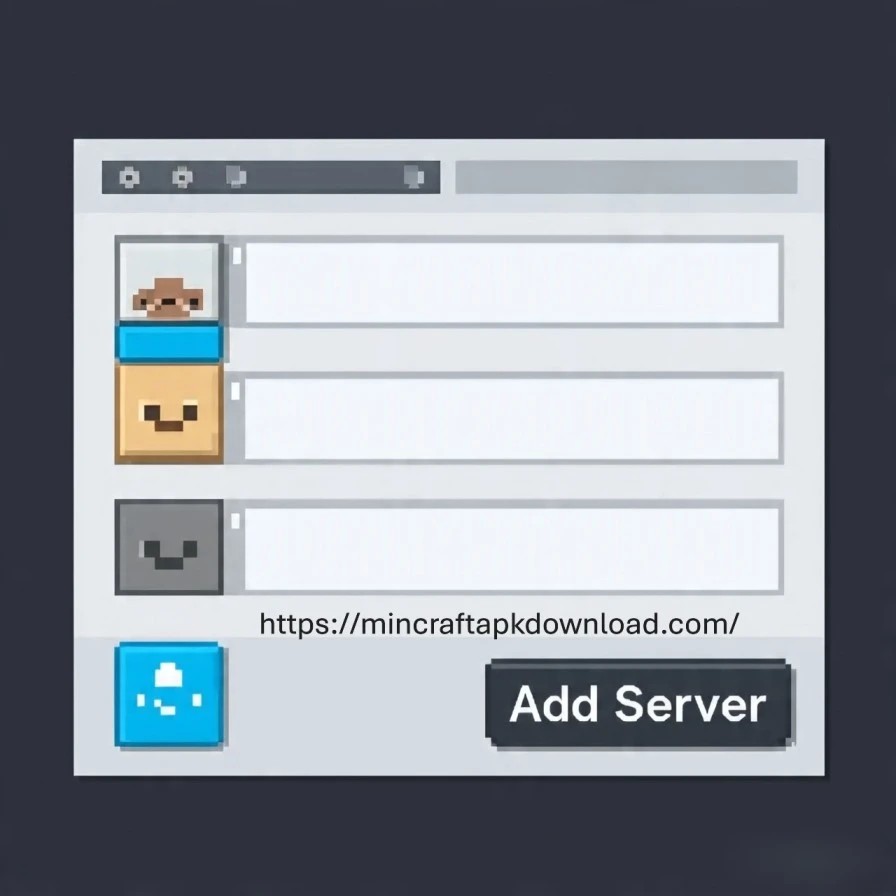
What Are Public Multiplayer Servers?
Public multiplayer servers are community-hosted worlds that anyone can join using a server IP address. These servers often feature thousands of active players and offer diverse game modes beyond standard survival. Friends can join the same server to explore, build, or compete in structured minigames.
How to Join a Public Server in Minecraft Java Edition?
- Open Minecraft Java Edition and select Multiplayer.
- Click Add Server or Direct Connect.
- Enter the server IP address provided by the server host.
- Save the entry or connect directly.
- Once connected, invite friends to join the same server for cooperative or competitive play.
Popular Game Modes on Public Servers
- Survival Multiplayer (SMP) – work together to gather resources and build.
- Skyblock – start on floating islands with limited resources.
- BedWars – team-based combat and base defense.
- Creative Plots – build freely in protected areas.
- Mini-games – parkour, treasure hunts, and PvP arenas.
Examples of Large Public Servers
- Hypixel – well-known for minigames and PvP events.
- CubeCraft – popular for creative challenges.
- Wynncraft – an MMORPG-style Minecraft server with quests.
When to Use Public Servers?
Joining public servers is ideal when friends want to play together in larger communities with varied game modes. Unlike private servers or Realms, public servers are free to access but require following community rules and guidelines for fair play.
How to Play Minecraft?
Minecraft is more than just a game. It’s a creative adventure where you can build, explore, and survive in a blocky, limitless world. Whether you want to craft tools, mine resources, or design massive structures, learning how to play Minecraft is the first step to unlocking endless fun.
Getting Started: Step by Step
1. Choose Your Game Mode
- Survival Mode: Gather resources, craft items, and fight off mobs while keeping your health and hunger up.
- Creative Mode: Unlimited blocks, flight abilities, and no health bar perfect for experimenting and building.
- Adventure Mode: Custom maps and quests, often made by other players.
- Hardcore Mode: A high stakes version of survival with only one life.
2. Understand the Basics
- Movement: Use W, A, S, D keys to move, spacebar to jump, and mouse to look around.
- Breaking & Placing Blocks: Left click to break, right click to place.
- Inventory & Crafting: Open inventory with E, combine resources at the crafting table to create tools, weapons, and armor.
3. Survive Your First Night
- Punch Trees: Collect wood, your first essential resource.
- Craft Tools: Make wooden tools, then upgrade to stone, iron, and beyond.
- Build Shelter: Before the sun sets, create a small base to protect yourself from hostile mobs like zombies, skeletons, and creepers.
- Light It Up: Craft torches with coal and sticks to keep your area safe.
Conclusion
You can play Minecraft Java with friends using LAN, Realms, or servers. LAN works for local play, Realms offer simple private worlds, and servers provide customization or large community access. Choose the method that fits your group for the best multiplayer experience.
FAQs
1. Can You Play Minecraft Java With Friends Without a Server?
Yes, you can play using LAN on the same network or join a friend’s Realm.
2. Is Minecraft Realms Free on Java Edition?
No, Minecraft Realms requires a paid monthly subscription after a free trial.
3. How Many Friends Can Join a Minecraft Java Server?
Realms allow up to 10 players, while private servers and public servers can host many more.
4. Can Minecraft Java Edition Crossplay With Bedrock Edition?
No, Java and Bedrock cannot crossplay without third-party tools like GeyserMC.
5. Which Multiplayer Option Is Best for Beginners?
Minecraft Realms is the easiest option for beginners because it needs no server setup.